
Blocking Googlebot stops Google from crawling your website, which can remove your site from Google Search, Google News, Google Images, and Google Discover.
The consequences depend on how you block it.
There are two common scenarios:
- You block Googlebot through robots.txt.
- You block Googlebot at the server, firewall, or CDN level.
These two methods can produce very different SEO outcomes.
If you block Googlebot through robots.txt, Google respects the crawling restriction but may still keep URLs in its index.
If your server returns a 403 Forbidden response to Googlebot, Google treats the URL as inaccessible. If this continues, previously indexed URLs can eventually disappear from Google Search.
This is an important difference. Blocking crawling does not always mean blocking indexing.
1. Googlebot stops crawling your website
The first and most obvious consequence is that Googlebot cannot crawl the URLs covered by your blocking rule.
For example, consider this robots.txt configuration:
User-agent: Googlebot
Disallow: /
This tells Googlebot not to crawl any URL on your website.
Googlebot may still know that your URLs exist through:
- Previously discovered URLs.
- Internal links found before the restriction.
- External backlinks.
- XML sitemaps.
- Other sources of URL discovery.
However, it cannot fetch the blocked pages to read their content.
This means Google cannot discover new content or properly check changes made to existing blocked pages.
Example:
You publish a new article and add it to your XML sitemap. But Googlebot is blocked from crawling your website.
Google may discover the URL through your sitemap, but it cannot fetch the article to understand its content.
Your sitemap does not override robots.txt restrictions.
2. Your existing indexed pages may not disappear immediately
This is where many website owners misunderstand robots.txt.
Blocking Googlebot does not automatically remove every existing URL from Google’s index.
Suppose your website has 500 indexed pages. You suddenly add a rule that blocks Googlebot across the entire website.
What happens to those 500 pages?
Google may continue showing their URLs in search results, even though it cannot crawl their content.
Why?
Because Google can discover URLs through links from other websites and other sources. It does not always need to crawl a page to know that the URL exists.
However, Google may have limited information about the blocked page. Search results can show a URL with a limited or missing description.
Google Search Console even has a specific status called Indexed, though blocked by robots.txt.
This is why robots.txt should not be used as a way to remove pages from Google Search.
If you want a page removed from search results, use a noindex directive and allow Googlebot to crawl the page so it can read that directive.
Google explains this distinction in its official robots.txt documentation.
3. New content may stop appearing in Google Search
Imagine you publish five new articles every week.
Normally, Googlebot discovers these pages through internal links, XML sitemaps and other discovery sources. It then crawls them and decides whether to index them.
But when Googlebot is blocked, this process breaks.
Your new articles might be discovered, but Google cannot fetch their content.
As a result:
- New pages may not get indexed.
- Updated content may not be processed.
- New title tags and meta descriptions may not be discovered.
- Changes to canonical tags may go unnoticed.
- Updated structured data may not be processed.
This does not mean Google instantly removes your entire website. It means you are preventing Google from accessing the information it needs to process your pages.
For a website that regularly publishes content, this can become a serious organic growth problem.
4. Your existing rankings and organic traffic can be affected
This is probably the biggest concern for website owners.
If Google cannot crawl your website, it cannot regularly refresh its understanding of your content.
Initially, some existing pages may continue ranking because Google already has information about them.
But over time, things can become problematic.
For example:
- Your competitors publish better and more recent content.
- Your pages become outdated.
- Google cannot discover your improvements.
- Important changes to your website go unnoticed.
- URLs returning access errors may eventually be removed from the index.
The exact timeline depends on how you blocked Googlebot and how Google processes the affected URLs.
There is no fixed rule saying that all rankings will disappear after 7, 15 or 30 days.
Important: A robots.txt block alone does not guarantee that your existing pages will lose rankings or disappear. A persistent server-side access denial is a different situation.
5. Google Discover, Google Images, and other Google products can be affected
Googlebot is not just about traditional blue-link search results.
Blocking Google’s crawling can affect other Google Search features and products too.
According to Google’s documentation, blocking Googlebot can affect:
| Google product | Potential impact |
|---|---|
| Google Search | Google cannot crawl blocked pages to process their content |
| Google Discover | Content may become unavailable for crawling and future consideration |
| Google Images | Blocked image resources cannot be crawled normally |
| Google Video | Blocked video resources cannot be crawled normally |
| Google News | Google cannot crawl blocked article content |
The actual impact depends on which crawler and resources you block.
For example, blocking Googlebot from your entire website is different from blocking only image files or a specific directory.
Google also operates different crawlers for different purposes. Blocking one crawler does not automatically block every Google crawler.
6. What if you block Googlebot using a firewall or Cloudflare?
This is where things get more interesting.
You don’t always need robots.txt to block Googlebot. You can also restrict access through:
- Cloudflare firewall rules.
- Web application firewalls (WAF).
- Server-level access rules.
- Security plugins.
- Hosting provider security settings.
- IP-based blocking.
- User-agent-based blocking.
For example, suppose you create a firewall rule that blocks requests containing the Googlebot user-agent.
When Googlebot requests a page, your server responds:
HTTP/1.1 403 ForbiddenGooglebot can reach your server, but your server refuses to provide the page.
This is not the same as a robots.txt disallow rule.
Google treats most 4xx responses, including 403, as signals that the requested content is unavailable. If a previously indexed URL continues returning a 4xx response, Google can remove it from its index over time.
So, if your firewall accidentally blocks Googlebot across your entire website, you could create a much bigger SEO problem than intended. Google for Developers+1
Robots.txt block vs firewall block
| Factor | robots.txt Disallow | Firewall returns 403 |
|---|---|---|
| Googlebot can request the page? | No, if the rule is followed | Yes, but access is denied |
| Can Google read page content? | No | No |
| Can the URL remain indexed? | Yes | It may be removed over time |
| Can Google discover the URL? | Yes | Yes |
| Can new content be processed? | No | No |
| Recommended for removing URLs from Google? | No | No |
One important distinction: a firewall that silently drops requests or causes timeouts can behave differently from one that returns 403. Don’t assume every blocking method produces the same response.
7. Google may reduce its crawling activity
Google adjusts its crawling activity based on website availability and server responses.
If your server repeatedly returns errors, Google may reduce its crawl rate.
For example, if your firewall returns 5xx errors or 429 responses to Googlebot, Google treats these as signs that the server may be overloaded.
Google may temporarily slow crawling to avoid putting additional pressure on your website.
If these errors continue for too long, already indexed URLs can eventually be dropped.
Google’s documentation explains that 5xx and 429 responses cause crawling to slow down, and persistent server errors can affect indexing. Google for Developers+1
This is why blocking Googlebot through server rules is not a sensible way to manage crawl budget.
If Googlebot is making too many requests, investigate the crawl activity and server load instead.
8. Google cannot see your latest SEO changes
Consider this situation.
You update an old article with:
- New information.
- Better headings.
- Updated internal links.
- A new title tag.
- Improved structured data.
- A new canonical URL.
You publish the changes and expect Google to process them.
But Googlebot is blocked.
Google cannot fetch the updated page and read those changes.
This creates a gap between what users see and what Google last processed.
Your website may be technically updated, but Google’s stored understanding of the page may remain outdated.
This can become particularly problematic during:
- Website migrations.
- URL restructuring.
- Major content updates.
- Canonical tag changes.
- Redesigns.
- Internal linking improvements.
The longer Google cannot access important pages, the longer it may take to process your changes after access is restored.
What happens when you unblock Googlebot?
Let’s say you accidentally blocked Googlebot for 10 days.
You discover the problem and remove the robots.txt restriction.
What happens now?
Googlebot can crawl your website again, subject to its normal crawling decisions.
However, don’t expect all your pages to be crawled and indexed immediately.
Google needs to revisit URLs, fetch their content, and process the changes.
Here are some things you should do after removing the restriction:
- Check your robots.txt file to ensure Googlebot is allowed.
- Check whether your server or CDN is still returning 403 responses.
- Inspect important URLs using Google Search Console.
- Run live URL tests on important pages.
- Check the sitemap and submit it if necessary.
- Review server logs to confirm Googlebot requests are succeeding.
- Monitor the Page Indexing and Crawl Stats reports.
You can request indexing for a few important URLs through URL Inspection, but submitting every URL repeatedly won’t force Google to crawl your entire website.
Google controls its crawling schedule.
How to check whether Googlebot is blocked
If you suspect Googlebot cannot access your website, don’t immediately edit robots.txt.
First, identify where the restriction is happening.
Method 1: Check robots.txt
Open:
https://example.com/robots.txtLook for rules such as:
User-agent: Googlebot
Disallow: /
Or:
User-agent: *
Disallow: /
The second rule blocks all compliant crawlers from crawling the entire website.
Remember that robots.txt rules can be more specific. Check the complete file before concluding.
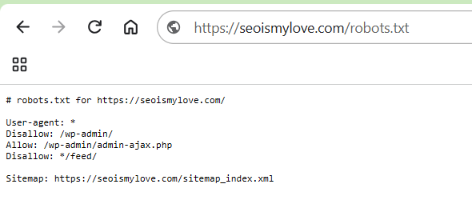
The image below shows the correct way to write robots.txt.
Method 2: Test your website’s HTTP response
You can use the following command in Windows Command Prompt:
curl.exe -I -A "Googlebot" https://example.com/Check the HTTP response.
| Response | What it tells you |
|---|---|
| 200 OK | The server returned a successful response |
| 301/302 | The URL redirects |
| 403 Forbidden | Access is denied |
| 404 Not Found | The requested URL doesn’t exist |
| 429 Too Many Requests | The server is rate-limiting requests |
| 500/503 | Server-side error |
Important: Changing the user-agent string to Googlebot does not make your request an authentic Googlebot request. Firewalls can distinguish real Googlebot traffic using IP addresses and other signals.
Method 3: Use Google Search Console
Open Google Search Console and inspect an important URL.
Go to URL Inspection → Test Live URL → View Tested Page
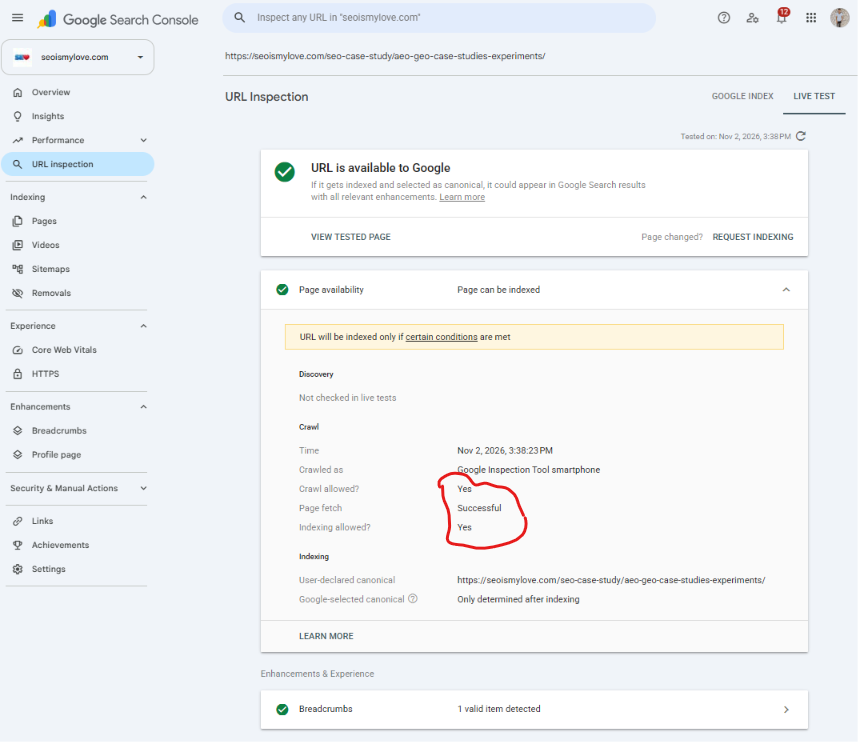
Check:
- Whether crawling is allowed.
- Whether the page can be fetched.
- Whether Google can render the page.
- Whether important content is visible.
- Whether any resources are blocked.
This helps you understand whether Google can actually access your page rather than relying only on what your browser displays.
Method 4: Check server logs
This is one of the most useful methods for technical SEO professionals.
Check your server access logs and filter requests containing:
GooglebotLook at:
- Requested URLs.
- HTTP status codes.
- Request frequency.
- Response times.
- Blocked requests.
- Server errors.
One important precaution: user-agent strings can be spoofed.
Don’t assume every request containing Googlebot comes from Google. Verify the source using reverse DNS lookup or Google’s published crawler IP ranges.
When You Should Block Googlebot?
There can be legitimate reasons to restrict Googlebot.
For example:
1. Development and staging websites
You may not want Google crawling unfinished website versions. However, use authentication or access controls for private environments rather than relying only on robots.txt.
2. Server overload
If Googlebot is generating excessive requests and affecting website performance, investigate crawl activity and server capacity. Google recommends temporary 503 or 429 responses in certain emergencies.
3. Unnecessary crawling
You may want to prevent crawling of certain low-value URL patterns, such as duplicate filter combinations or internal search URLs.
4. Specific content restrictions
You may want to restrict particular directories or resources instead of blocking the entire website.
The key is to block only what you actually need to block.
You rarely need to block Googlebot from your entire production website.
What happens if you block Googlebot for different durations?
There is no fixed deindexing timeline. The outcome depends on the blocking method, server responses, and Google’s processing.
Here is a simplified way to understand the potential impact:
| Situation | Potential outcome |
|---|---|
| Blocked for a few hours | Temporary crawling disruption |
| Blocked for several days | New and updated pages may not be processed |
| Blocked for several weeks | Greater risk of outdated information and indexing problems |
| Blocked for months | Significant risk to organic visibility, particularly with server-side denial |
| Blocked permanently | Google cannot normally crawl and refresh the blocked content |
These are illustrative scenarios, not Google’s official deindexing deadlines.
A robots.txt restriction can leave URLs indexed even for long periods. A persistent 403 or 5xx response has different consequences.
Frequently Asked Questions
Does blocking Googlebot remove my website from Google?
No, not immediately. If you block Googlebot using robots.txt, existing URLs may remain indexed even though Google cannot crawl their content. Server-side access denial can eventually lead to URLs being removed from the index.
Will blocking Googlebot affect my existing rankings?
It can. Google may initially retain existing information about your pages, but it cannot regularly crawl and process updates. Persistent server-side blocking can eventually cause indexing and ranking losses.
Can Google index a page blocked by robots.txt?
Yes. Google can discover a blocked URL through external links and other sources. It may index the URL without crawling its content. Google for Developers+1
Does blocking Googlebot affect Google Discover?
It can. Blocking Googlebot can affect content accessibility across Google Search features, including Discover. Google for Developers
Is blocking Googlebot the same as adding a noindex tag?
No. A robots.txt rule prevents crawling, while a noindex directive tells Google not to include a page in search results after Google crawls and reads the directive.
What happens if I block Googlebot but allow Bingbot?
Googlebot will be restricted according to your rules, while Bingbot can continue crawling if you haven’t blocked it separately.
Can I block Googlebot from one directory only?
Yes. For example:
User-agent: Googlebot
Disallow: /private/
Allow: /
This restricts Googlebot from crawling the /private/ directory while allowing other paths, subject to robots.txt matching rules.
Conclusion
Blocking Googlebot is not necessarily an SEO disaster. It depends on what you block, how you block it and how long the restriction remains in place.
The biggest mistake is treating crawling and indexing as the same thing.
A robots.txt restriction tells Google not to crawl a URL. It does not guarantee that Google will remove that URL from its index.
A firewall returning 403 is a different situation. It denies access to the requested resource and can eventually lead to deindexing.
If you manage a website, check your robots.txt file, server responses, and Googlebot access before making changes to your crawling rules.
Official resources and further reading
- Google: Introduction to robots.txt
- Google: What Is Googlebot?
- Google: Block Search Indexing with noindex
- Google: How HTTP Status Codes Affect Google’s Crawlers
- Google: Troubleshoot Crawling Errors

I am an SEO specialist with more than 7 years of hands-on experience in SEO, organic content marketing, technical SEO, and social media. I have an engineering degree, giving me an unusual combination of technical understanding and digital marketing expertise. Know more about me.