
You can start with a simple test in Google Chrome. By changing your browser’s user agent, you can simulate an AI crawler and check how your website responds.
However, this test has limitations. A browser pretending to be an AI crawler is not the same as the real crawler visiting your website.
Here is how to run the test, identify potential access issues, and verify your findings.
1. Find the AI crawler’s user agent
First, identify the crawler you want to test.
AI Crawler List
| Name | Purpose | Verified IP List | Robots.txt disallow | Complete User Agent |
|---|---|---|---|---|
| GPTBot | AI training data collection for GPT models (ChatGPT, GPT-4o) | Official IP List | User-agent: GPTBot Allow: / Disallow: /private-folder | Mozilla/5.0 AppleWebKit/537.36 (KHTML, like Gecko; compatible; GPTBot/1.3; +https://openai.com/gptbot) |
| ChatGPT-User | AI agent for real-time web browsing when users interact with ChatGPT | Official IP List | User-agent: ChatGPT-User Allow: / Disallow: /private-folder | Mozilla/5.0 AppleWebKit/537.36 (KHTML, like Gecko); compatible; ChatGPT-User/1.0; +https://openai.com/bot |
| OAI-SearchBot | AI search indexing for ChatGPT search features (not for training) | Official IP List | User-agent: OAI-SearchBot Allow: / Disallow: /private-folder | Mozilla/5.0 (Macintosh; Intel Mac OS X 10_15_7) AppleWebKit/537.36 (KHTML, like Gecko) Chrome/131.0.0.0 Safari/537.36; compatible; OAI-SearchBot/1.3; +https://openai.com/searchbot |
| ClaudeBot | AI training data collection for Claude models | Official IP List | User-agent: ClaudeBot Allow: / Disallow: /private-folder | Mozilla/5.0 AppleWebKit/537.36 (KHTML, like Gecko; compatible; ClaudeBot/1.0; +claudebot@anthropic.com) |
| Claude-User | AI agent for real-time web access when Claude users browse | Not available | User-agent: Claude-User Disallow: /sample-folder | Mozilla/5.0 AppleWebKit/537.36 (KHTML, like Gecko; compatible; Claude-User/1.0; +Claude-User@anthropic.com) |
| Claude-SearchBot | AI search indexing for Claude search capabilities | Not available | User-agent: Claude-SearchBot Allow: / Disallow: /private-folder | Mozilla/5.0 AppleWebKit/537.36 (KHTML, like Gecko; compatible; Claude-SearchBot/1.0; +https://www.anthropic.com) |
| Google-CloudVertexBot | AI agent for Vertex AI Agent Builder (site owners’ request only) | Official IP List | User-agent: Google-CloudVertexBot Allow: / Disallow: /private-folder | Mozilla/5.0 (Linux; Android 6.0.1; Nexus 5X Build/MMB29P) AppleWebKit/537.36 (KHTML, like Gecko) Chrome/141.0.7390.122 Mobile Safari/537.36 (compatible; Google-CloudVertexBot; +https://cloud.google.com/enterprise-search) |
| Google-Extended | Token controlling AI training usage of Googlebot-crawled content. | User-agent: Google-Extended Allow: / Disallow: /private-folder | ||
| Gemini-Deep-Research | AI research agent for Google Gemini’s Deep Research feature | Official IP List | User-agent: Gemini-Deep-Research Allow: / Disallow: /private-folder | Mozilla/5.0 AppleWebKit/537.36 (KHTML, like Gecko; compatible; Gemini-Deep-Research; +https://gemini.google/overview/deep-research/) Chrome/135.0.0.0 Safari/537.36 |
| Gemini’s chat when a user asks to open a webpage | ||||
| Bingbot | Powers Bing Search and Bing Chat (Copilot) AI answers | Official IP List | User-agent: BingBot Allow: / Disallow: /private-folder | Mozilla/5.0 AppleWebKit/537.36 (KHTML, like Gecko; compatible; bingbot/2.0; +http://www.bing.com/bingbot.htm) Chrome/116.0.1938.76 Safari/537.36 |
| Applebot-Extended | Doesn’t crawl but controls how Apple uses Applebot data. | Official IP List | User-agent: Applebot-Extended Allow: / Disallow: /private-folder | Mozilla/5.0 (Macintosh; Intel Mac OS X 10_15_7) AppleWebKit/605.1.15 (KHTML, like Gecko) Version/17.4 Safari/605.1.15 (Applebot/0.1; +http://www.apple.com/go/applebot) |
| PerplexityBot | AI search indexing for Perplexity’s answer engine | Official IP List | User-agent: PerplexityBot Allow: / Disallow: /private-folder | Mozilla/5.0 AppleWebKit/537.36 (KHTML, like Gecko; compatible; PerplexityBot/1.0; +https://perplexity.ai/perplexitybot) |
| Perplexity-User | AI agent for real-time browsing when Perplexity users request information | Official IP List | User-agent: Perplexity-User Allow: / Disallow: /private-folder | Mozilla/5.0 AppleWebKit/537.36 (KHTML, like Gecko; compatible; Perplexity-User/1.0; +https://perplexity.ai/perplexity-user) |
| Meta-ExternalAgent | AI training data collection for Meta’s LLMs (Llama, etc.) | Not available | User-agent: meta-externalagent Allow: / Disallow: /private-folder | meta-externalagent/1.1 (+https://developers.facebook.com/docs/sharing/webmasters/crawler) |
| Meta-WebIndexer | Used to improve Meta AI search. | Not available | User-agent: Meta-WebIndexer Allow: / Disallow: /private-folder | meta-webindexer/1.1 (+https://developers.facebook.com/docs/sharing/webmasters/crawler) |
| Bytespider | AI training data for ByteDance’s LLMs for products like TikTok | Not available | User-agent: Bytespider Allow: / Disallow: /private-folder | Mozilla/5.0 (Linux; Android 5.0) AppleWebKit/537.36 (KHTML, like Gecko) Mobile Safari/537.36 (compatible; Bytespider; https://zhanzhang.toutiao.com/) |
| Amazonbot | AI training for Alexa and other Amazon AI services | Not available | User-agent: Amazonbot Allow: / Disallow: /private-folder | Mozilla/5.0 AppleWebKit/537.36 (KHTML, like Gecko; compatible; Amazonbot/0.1; +https://developer.amazon.com/support/amazonbot) Chrome/119.0.6045.214 Safari/537.36 |
| DuckAssistBot | AI search indexing for DuckDuckGo search engine | Official IP List | User-agent: DuckAssistBot Allow: / Disallow: /private-folder | DuckAssistBot/1.2; (+http://duckduckgo.com/duckassistbot.html) |
| MistralAI-User | Mistral’s real-time citation fetcher for “Le Chat” assistant | Not available | User-agent: MistralAI-User Allow: / Disallow: /private-folder | Mozilla/5.0 AppleWebKit/537.36 (KHTML, like Gecko; compatible; MistralAI-User/1.0; +https://docs.mistral.ai/robots) |
| Webz.io | Data extraction and web scraping used by other AI training companies. Formerly known as Omgili. | Not available | User-agent: webzio Allow: / Disallow: /private-folder | webzio (+https://webz.io/bot.html) |
| Diffbot | Data extraction and web scraping used by companies all over the world. | Not available | User-agent: Diffbot Allow: / Disallow: /private-folder | Mozilla/5.0 (Windows; U; Windows NT 5.1; en-US; rv:1.9.1.2) Gecko/20090729 Firefox/3.5.2 (.NET CLR 3.5.30729; Diffbot/0.1; +http://www.diffbot.com) |
| ICC-Crawler | AI and machine learning data collection | Not available | User-agent: ICC-Crawler Allow: / Disallow: /private-folder | ICC-Crawler/3.0 (Mozilla-compatible; ; https://ucri.nict.go.jp/en/icccrawler.html) |
| CCBot | Open-source web archive used as training data by multiple AI companies | Official IP List | User-agent: CCBot Allow: / Disallow: /private-folder | CCBot/2.0 (https://commoncrawl.org/faq/) |
2. Open Chrome DevTools
Open the webpage you want to test in Google Chrome.
1. Right-click anywhere on the page and select Inspect.
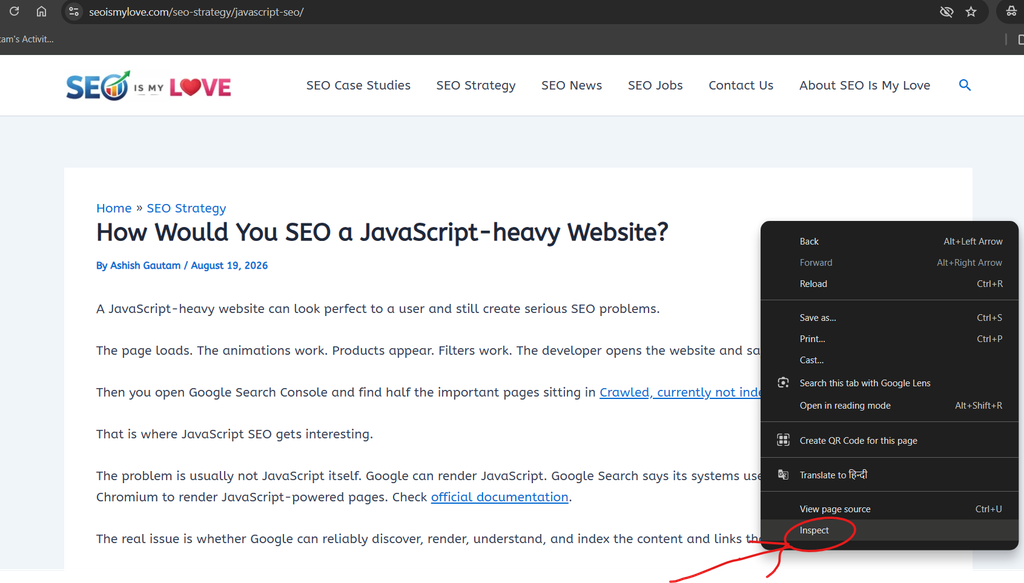
2. Click the three-dot menu in the top-right corner of DevTools.
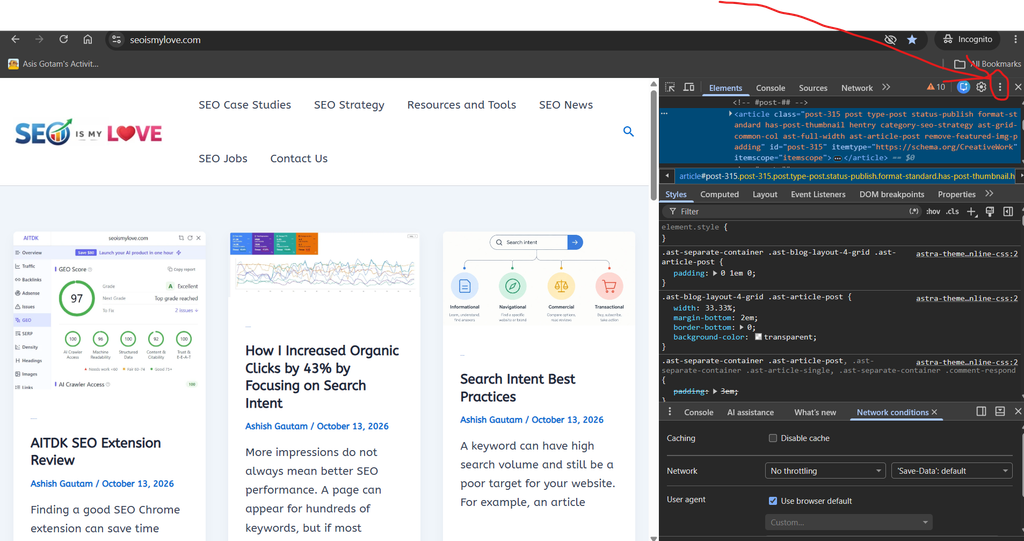
3. Select More tools → Network conditions.
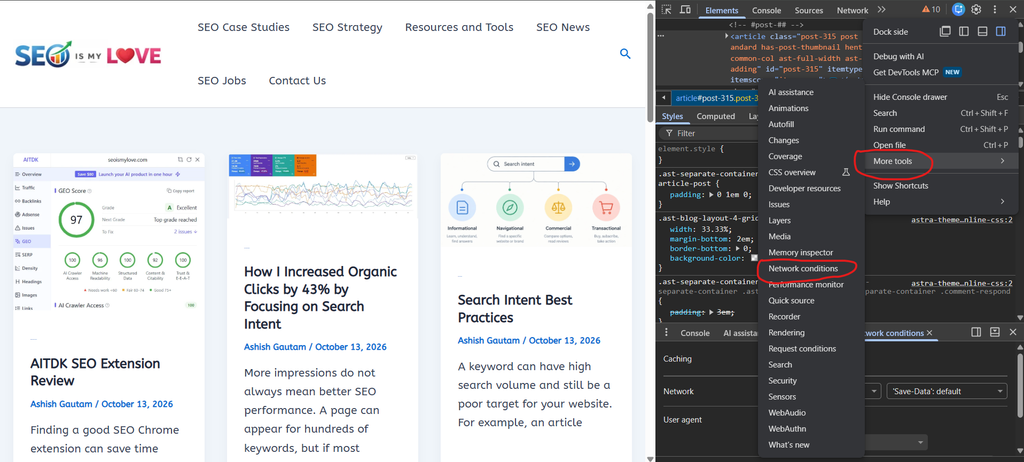
You can also open Network conditions from the Network panel or use Chrome’s DevTools Command Menu by pressing Ctrl + Shift + P on Windows and searching for “Show Network conditions.”
3. Change the browser’s user agent
In the Network conditions panel:
- Find the User agent section.
- Uncheck Use browser default.
- Select the custom user-agent option.
- Paste the AI crawler’s user-agent string from the AI Crawler list (column D in the table shown above).
- Reload the webpage.
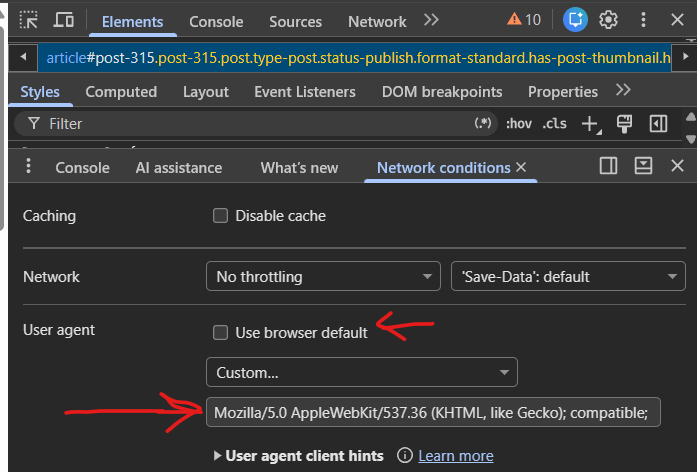
Chrome will now send requests with the overridden user-agent string. This lets you investigate whether your website responds differently when a request identifies itself as an AI crawler.
Important: Chrome is still a browser. This change does not give it the same IP address, network identity, or crawling behavior as the actual AI crawler.
4. Check the page response
After reloading the page, look at what happens.
Does the page load normally? Does it show a security challenge, an access-denied message, or an error?
Open the Network tab in DevTools and reload the page if you need to inspect individual requests. Select the main document request to review its HTTP status code and response.
Here is how to interpret common results:
| Result | What it may indicate |
|---|---|
| 200 OK | The server returned a successful response to your browser. |
| 301 or 302 | The request was redirected. Check the destination and final response. |
| 401 Unauthorized | The resource may require authentication. |
| 403 Forbidden | The request may be blocked by server rules, a CDN, or security software. |
| 404 Not Found | The requested URL may not exist or may be unavailable at that location. |
| 429 Too Many Requests | A rate limit may have been triggered. |
| CAPTCHA or challenge | A security system may be asking the visitor to verify that it is human. |
| 5xx response | The server or an upstream service may have encountered an error. |
These results are clues, not definitive diagnoses. For example, a 403 response does not automatically mean your website blocks all AI crawlers.
Also check whether the main article content appears in the returned HTML. A successful response does not necessarily mean that the page’s useful content is available to a crawler.
5. Check your robots.txt file
Next, check whether your website’s robots.txt file contains rules that restrict the crawler.
Open this URL in your browser:
https://yourdomain.com/robots.txt
Replace yourdomain.com with your actual domain.
Look for a rule matching the crawler’s product token. For example:
User-agent: OAI-SearchBot
Allow: /

User-agent: GPTBot
Disallow: /
This illustrative configuration allows OAI-SearchBot to crawl the site while asking GPTBot not to crawl it.
The distinction matters because search discovery and model-training data collection are different purposes.
When checking robots.txt, review the full file rather than searching for one line. More specific rules, other user-agent groups, and path-level restrictions can affect individual URLs.
Remember that robots.txt is a crawler instruction, not an access-control mechanism. It does not physically prevent a bot from requesting a URL, and it cannot replace authentication or server-side security controls.
6. Check whether a firewall or CDN blocks AI crawlers
Your robots.txt file may allow a crawler while your server still blocks its requests.
Security systems such as a web application firewall, CDN, hosting security layer, or anti-bot service may reject requests based on IP address, request patterns, or other signals.
If you find a 403 response, CAPTCHA, or repeated rate-limit error:
- Check your CDN or firewall security events.
- Review bot-protection and rate-limiting rules.
- Check whether the affected URL requires a login or special cookies.
- Compare the response with a normal browser request.
- Ask your hosting provider to investigate if you cannot access the relevant logs.
Don’t disable your security protections just to let AI crawlers through. First determine which requests are being blocked and whether the crawler is genuine.
7. Verify access using server logs
If you want stronger evidence that an AI crawler actually visits your website, check your server access logs.
Depending on your hosting provider, you may find these in a hosting dashboard or need to request them from support.
Search for the crawler’s user-agent token and inspect the requested URLs, timestamps, response status codes, and source IP addresses.
For example, a log entry may show a request from a crawler identifying itself as OAI-SearchBot and a response status of 200.
That is useful evidence, but the user-agent string alone is not proof that the request came from OpenAI. Anyone can imitate a user-agent string.
Where the platform publishes official IP ranges or verification instructions, use them to validate the request. Follow the relevant platform’s current documentation because verification methods differ between providers.
You can then distinguish between:
- A request that claims to be from an AI crawler.
- A request from a verified crawler.
- A verified crawler request that received a successful response.
- A crawler request that was blocked or returned an error.
This is a much more reliable way to investigate actual crawler access than relying on a browser simulation alone.
8. Understand which AI crawlers you actually need
Not every AI-related crawler controls the same function.
For example, OpenAI distinguishes between:
- OAI-SearchBot: Used to discover content for ChatGPT search.
- GPTBot: Associated with collecting content that may be used to train generative AI foundation models.
- ChatGPT-User: Used for certain user-initiated visits to websites.
Google also uses the Google-Extended token to communicate controls for certain AI uses of content crawled by Google. It is not a separate crawler that you can test in Chrome in the same way as a conventional user-agent bot.
Before changing your robots.txt file, decide which use you want to permit or restrict. Allowing a training crawler is not a prerequisite for allowing a search crawler from the same company.
Consult the relevant platform’s official documentation for the current purpose and behavior of each crawler.
9. Final checklist
Use this checklist when auditing a page for AI crawler access.
- I identified the correct crawler and its purpose.
- I tested the page using its user-agent string.
- I checked the HTTP response and final URL.
- I checked whether the main content is available in the response.
- I reviewed robots.txt for applicable restrictions.
- I checked CDN, firewall, and hosting security rules.
- I reviewed server logs for actual crawler requests.
- I verified the crawler’s identity where official verification is available.
Conclusion
Changing your user agent in Chrome is a quick, free way to start investigating whether a website responds differently to AI crawler requests.
But don’t confuse a successful simulation with confirmed crawler access. A reliable investigation combines browser testing with robots.txt checks, HTTP responses, security configuration, and server-log verification.
Also, check if your content is behind JavaScript.
People Also Asked
Can I test AI crawlers without coding?
Yes. You can use Chrome DevTools to change your browser’s user agent and inspect the website’s response. You can also check robots.txt directly in your browser. However, verifying genuine crawler visits usually requires access to server logs or security logs.
Does changing the user agent prove ChatGPT can crawl my website?
No. Changing the user agent only makes your browser identify itself with a different string. It does not reproduce the real crawler’s IP address or network behavior. Use server logs and official crawler-verification methods to confirm genuine access.
How do I know if GPTBot is blocked?
Check your robots.txt file for rules that apply to GPTBot, then review your firewall, CDN, and hosting security settings. If you have server logs, look for requests from verified GPTBot sources and check their HTTP status codes.
Does robots.txt control whether ChatGPT cites my website?
Not directly. Robots.txt can influence whether a crawler is allowed to access your content, but access alone does not guarantee that ChatGPT will retrieve, display, or cite your pages. Different OpenAI crawlers serve different purposes, so check the relevant crawler’s documentation before changing your rules.
Can I allow OAI-SearchBot but block GPTBot?
Yes. You can configure separate robots.txt rules for these crawlers. OAI-SearchBot supports ChatGPT search discovery, while GPTBot is associated with collecting content that may be used to train generative AI models. Make sure your rules reflect your intended permissions and review OpenAI’s current documentation.
How can I check AI crawler visits in server logs?
Access your hosting server’s access logs or ask your hosting provider for them. Search for the crawler’s user-agent string, requested URLs, timestamps, and HTTP status codes. Since user-agent strings can be spoofed, verify the source IP using the platform’s official guidance where available.
Does a 200 status code mean AI crawlers can access my content?
Not necessarily. A 200 response confirms that the server returned a successful response to the request you tested. It does not prove that the real AI crawler can reach the same URL or that the response contains the main content you want it to discover.

I am an SEO specialist with more than 7 years of hands-on experience in SEO, organic content marketing, technical SEO, and social media. I have an engineering degree, giving me an unusual combination of technical understanding and digital marketing expertise. Know more about me.
Pingback: JavaScript SEO Tutorial